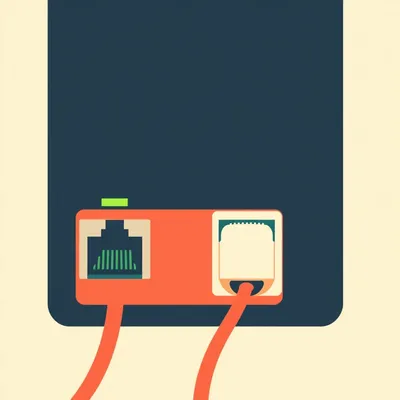
Daniel sent us this one — he's a seasoned home networking guy who realized recently that those flickering Ethernet port lights aren't just decoration. They're a real-time diagnostic panel for the entire network stack, and he wants to know what specific blink patterns to look for when troubleshooting intermittent connectivity in a home or small business setup with multiple switches and 2.5 gigabit or faster interlinks. This is one of those topics where once you learn to read the lights, you can't unsee it.

Most people never learn. They glance at a switch, see green lights, and think everything's fine. Meanwhile their network is quietly falling apart at layer two while the link light sits there looking perfectly healthy. The blink patterns are a language, and we're going to translate it.
The moment that changed my entire perspective was watching someone diagnose a failing ten-gigabit link in under thirty seconds by just staring at an LED. No packet capture, no cable tester, just watching a light stutter in a way that meant "your fiber connector is dirty." That's when I realized every switch ships with a diagnostic panel and most of us treat it like mood lighting.
The timing matters. With two-point-five and five gigabit Ethernet becoming common in home labs — QNAP NAS units, TP-Link switches, the little multi-gig boxes everyone's buying — the old heuristic of "green equals good, off equals bad" is dangerously incomplete. Multi-gig links over marginal cabling will negotiate successfully and then silently drop frames, and the only clue is in the blink.
Let's start with the fundamentals. What are the three base states an LED can be in, and what do they actually mean?
Three states, but they're not what most people assume. Steady on, steady off, and blinking. At the physical layer — layer one — a steady green link light means auto-negotiation completed successfully. The two endpoints exchanged their capabilities, agreed on a speed and duplex mode, and established link. That process, defined in IEEE 802.3 clause 28, takes about five hundred to a thousand milliseconds. During that window the link light is either off or blinking rapidly, and that's normal.
A steady link light is the handshake completing. But it's not a clean bill of health.
Not even close. It means the devices had one successful conversation. It does not mean the link is error-free, it does not mean you're getting the speed you negotiated, and it does not mean the cable isn't about to fail. CRC errors, duplex mismatches, marginal signal integrity — all of those can exist with a perfectly steady green link light. The link light is the equivalent of "hello" succeeding, not "the conversation is going well.
Like shaking hands with someone and then they immediately start mumbling.
Now, the second state — steady off — is straightforward. No link, no cable, dead port, powered down, or auto-negotiation failed. But the third state is where the diagnostic language actually lives: blinking. And the cadence matters enormously.
This is where I think most people get tripped up. They see blinking and think "data is flowing, everything's working." But that's only one possible meaning.
Let's establish the vocabulary. A fast, somewhat irregular blink — roughly tracking actual packet transmission — is the activity LED. That's normal traffic. But a slow, metronomic blink at about one hertz, once per second, is often Energy Efficient Ethernet, IEEE 802.3az, low-power idle. The port is up, the link is negotiated, but there's no traffic, so the PHY enters a quiet state to save power. The link light pulses slowly to say "I'm still here, just napping." This gets misdiagnosed constantly as a dying port or a flapping link.
I've absolutely done that. Saw a port blinking once per second on a switch, assumed the cable was bad, replaced it, same behavior, started questioning reality.
The cable was fine, the port was fine, the switch was just being power-efficient. That's a great example of how knowing the cadence prevents unnecessary work. Now let's layer in speed indicator LEDs. Multi-speed ports — one gig, two-point-five, five, ten gig — often use color to indicate negotiated speed. The most common scheme on consumer and prosumer gear: green for one gig or one hundred meg, amber or orange for two-point-five or five gig. On the TP-Link TL-SX1008, for example, the port LED is green at one gig and amber at two-point-five or five gig.
If you've got a NAS connected with a Cat5e cable and the LED is green when it should be amber, you've just learned in one glance that your link fell back to one gig.
No logging into the NAS, no checking the switch management interface. The LED just told you your multi-gig link negotiated down. And on many switches, the speed LED is separate from the activity LED — you'll have a left LED for speed and a right LED for activity, or a dual-color single LED. The key is knowing which is which on your specific hardware.
Which brings us to the first practical skill: know your switch's LED language. The same blink pattern means different things on different vendors.
A fast blink on a Netgear means something completely different than on a MikroTik. On a MikroTik CRS3xx series, for instance, you can actually configure the LEDs to show different diagnostic modes. There's a secondary LED mode where rapid, irregular blinking indicates FCS or CRC errors on the wire — frame check sequence failures. The switch is essentially telling you "I'm receiving frames, but they're corrupted.
This is something you have to explicitly enable?
On managed switches, yes. It's not on by default. On the MikroTik, you'd set the LED to show interface traffic or interface status with error indication. On UniFi Pro switches, there's a similar diagnostic mode accessible through the controller. The LED starts blinking in a pattern that's visibly different from normal traffic — it's more erratic, almost like a stutter, because CRC errors don't arrive at a consistent rate. They come in bursts when the signal degrades past a threshold.
Let's walk through that case study with the QNAP NAS and the TP-Link switch. What does that actually look like in practice?
Here's the scenario. You've got a QNAP NAS with a two-point-five gigabit port connected to a TP-Link TL-SX1008 multi-gig switch. The link light is steady green — auto-negotiation succeeded. But you're getting intermittent file transfer drops. Large files fail partway through. You check the speed LED and it shows amber, so you're at two-point-five gig — good. But then you enable the diagnostic LED mode and see a rapid, irregular blink that doesn't match the rhythm of normal file transfer traffic. That stutter is CRC errors. The switch is receiving frames, checking the frame check sequence, and finding mismatches. The cable is the culprit.
This was a cable that passed a continuity test.
Passed continuity perfectly. All eight pins connected, no shorts. But at two-point-five gig signaling rates, the cable's insertion loss and crosstalk characteristics matter enormously. Cat5e is rated for two-point-five gig up to one hundred meters, but with marginal cabling — poor termination, kinks, cheap connectors — CRC errors start appearing around seventy to eighty meters. The cable electrically conducts, but the signal integrity is degraded enough that the PHY can't reliably decode the symbols. The LED pattern is your first and fastest clue.
The link light said "we shook hands," the speed LED said "at two-point-five gig," and the diagnostic blink said "but the conversation is full of errors." Three layers of information from two lights.
None of them required a cable tester or a packet capture. Just knowing what to look for. Now, let's move up the stack. We've covered physical layer diagnostics. But what about when the link is solid, the speed is right, and you're still dropping packets? That's where layer two diagnostics come in.
This is the duplex mismatch detection. You mentioned a "stutter blink" — what does that actually look like?
Duplex mismatch is one of the most insidious network problems because everything appears to work until you push traffic above a certain threshold. A port configured for half-duplex talking to a full-duplex port will work fine at low utilization, then fall apart under load. The LED signature is distinctive: the activity LED flickers rapidly but irregularly — that's the stutter — and if you watch closely, the link light dims slightly during the bursts. The dimming is subtle, but it's there, because the PHY is momentarily losing sync during collision events.
This happens because the half-duplex side is detecting collisions and backing off?
The half-duplex side sees simultaneous transmit and receive as a collision, invokes the CSMA/CD backoff algorithm, and retransmits. The collision detect counter increments, and at utilization above about fifteen percent, the activity LED on that port starts showing the stutter pattern. It's not a clean blink — it's like a flicker with micro-pauses, because the port is constantly stopping and restarting transmission.
If you see an activity LED that looks like it's having a seizure rather than blinking rhythmically, suspect duplex mismatch.
That's the heuristic. And it's worth noting that on a fully managed switch, you'd just check the interface counters for collisions. But on an unmanaged switch — which is what most home labs and small businesses have — the LED might be your only diagnostic tool. This is why the skill of reading blink patterns is so valuable in budget-constrained environments.
What about the opposite problem? An activity LED that's solid on — not blinking at all, just lit continuously at what looks like a hundred percent duty cycle.
That's a red flag. A solid-on activity LED for extended periods — more than, say, thirty seconds — often indicates a broadcast storm or a switching loop. Normal high-throughput traffic still shows a slight variation in the blink, a micro-flicker, because even saturated links have inter-frame gaps. A broadcast storm saturates the link so completely that the LED appears solid. If you see that, unplug something immediately.
The network equivalent of a stuck accelerator.
Just as dangerous. A broadcast storm can bring down an entire network segment in seconds. The LED is your early warning. Now, let's add another layer: PoE. Power over Ethernet adds its own diagnostic vocabulary. Many PoE switches use a separate LED or a distinct blink pattern to indicate power faults.
What's an example of that?
On UniFi Switch PoE Plus models, if the PoE LED blinks three times, pauses, then repeats — a three-blink pattern — that indicates "power budget exceeded." The switch is telling you it can't deliver the requested power to that port because it's already allocated its total PoE budget to other ports. It's not a device fault, it's not a cable fault — it's a provisioning issue. But if you don't know the three-blink code, you might replace the camera or access point unnecessarily.
Which is a very expensive way to learn that your switch is out of power budget.
On other switches, a slow amber blink on the PoE LED might indicate a short circuit or a non-compliant device. The point is that PoE faults have their own blink vocabulary, separate from data link diagnostics. You need to learn both if you're running cameras or access points.
Let's talk about fiber. SFP Plus ports have their own set of indicators that are completely different from copper Ethernet.
Fiber diagnostics are simpler in some ways but more cryptic in others. SFP Plus ports typically have a "TX fault" or "LOS" LED — Loss of Signal. A steady LOS LED means no light is being received at all. That's a complete break — cut fiber, failed transceiver, or the far end is powered off. But a blinking LOS LED at about one hertz is more interesting. That usually indicates intermittent signal — a dirty connector, a bend in the fiber that's right at the loss threshold, or a transceiver that's starting to fail.
Steady LOS is "something's broken," blinking LOS is "something's dirty or bent.
That's the rough heuristic. And in a fiber deployment, dirty connectors are the number one cause of intermittent problems. The core of a single-mode fiber is nine microns — a speck of dust is enormous by comparison. The blinking LOS LED is your signal to clean the connector before doing anything else.
Which takes thirty seconds with a one-click cleaner and solves the problem most of the time.
Yet people skip it and start replacing transceivers. The LED is right there, telling you exactly what to do.
We've covered single-port diagnostics. Now let's talk about the skill you called "walking the blink chain" — tracing a problem across multiple switches by reading LEDs at each hop.
This is where it gets really practical. Imagine a home lab with three switches: a UniFi USW-Pro-24 at the core, a MikroTik CRS326 as a distribution switch, and a Netgear GS110EMX at the edge. They're connected via two-point-five gig and ten gig fiber. You've got intermittent connectivity between VLANs — sometimes it works, sometimes it doesn't, no clear pattern.
The worst kind of problem.
Now, on a fully managed setup with SNMP monitoring and syslog, you'd have data. But let's say you don't — or you do, and it's not giving you a clear answer. You walk to the rack and start watching LEDs. On the MikroTik's SFP Plus uplink port, you notice the activity LED is steady on for about thirty seconds, then off for five seconds, then steady on again, repeating. That pattern — long on, brief off, cycling — is not normal traffic. Normal traffic doesn't have a thirty-second duty cycle with clean five-second gaps.
What is that?
That's a spanning tree reconvergence loop. The switch is forwarding for thirty seconds, then the topology changes, spanning tree blocks the port for five seconds while it recalculates, then it unblocks and forwards again. The LED pattern is the signature of RSTP flapping. In this case, it was caused by a misconfigured RSTP priority — two switches both thought they were the root bridge.
You can see that just by watching the blink pattern.
The steady-on period is forwarding, the off period is the port in blocking state during reconvergence. If you know what spanning tree reconvergence looks like, that LED pattern is unmistakable. Compare that to the same fault on the UniFi switch's uplink port — on UniFi, you might see the link LED drop and re-establish during each reconvergence event, because some implementations bring the link down during topology change. The pattern is different on different vendors, but the rhythm of the problem is the same.
The key is knowing the rhythm, not the exact blink specification.
And that's what makes this a skill rather than just memorizing a table. You develop an intuition for what healthy traffic looks like versus what a fault pattern looks like. Healthy traffic is somewhat stochastic — it varies. Fault patterns are rhythmic. A broadcast storm is solid on. A spanning tree flap is cyclical. A CRC error burst is irregular but clustered. A duplex mismatch is a stutter.
The "rhythm of the problem" is a great way to put it. Let's talk about the specific case where the uplink port on switch two shows CRC error blinks, but switch one's downlink port shows clean activity. What does that tell you?
That's a classic cable fault isolation. If switch one's downlink port shows clean, normal activity, and switch two's uplink port — connected to that same cable — shows CRC error blinks, the fault is in the cable. Not in either switch. The reason is that CRC errors are detected at the receiving end. Switch two is receiving corrupted frames, so the cable is degrading the signal in the direction from switch one to switch two. If the cable were bidirectional-symmetric, you'd expect errors on both ends — but marginal cables often have asymmetric problems because one connector is slightly worse than the other.
By comparing the LED patterns at both ends of the same link, you've isolated the fault to the physical medium in about ten seconds.
Without touching a cable tester. Now, a cable tester would confirm it, but the LED comparison gave you the diagnosis instantly. This is the power of walking the blink chain — you move from switch to switch, port to port, comparing patterns, and the fault location becomes obvious through the asymmetry.
What about the scenario where the link light is steady, the activity LED shows no blinking at all during a reported outage, but the link never drops?
That's a crucial diagnostic signal. A link light that stays steady and never blinks during a reported connectivity outage points to a layer two or layer three problem, not a physical issue. If it were physical — a bad cable, a failing transceiver — the link light would drop and re-establish. The fact that the link stays up tells you the physical layer is fine. Your problem is somewhere in the switching logic, VLAN configuration, routing, or spanning tree. The LED just ruled out half the possible causes.
The absence of blinking is itself a diagnostic signal.
A link light that drops and comes back points to physical or power issues. A link light that stays solid during an outage points to configuration or protocol issues. That single observation can save hours of troubleshooting down the wrong path.
Let's talk about the Energy Efficient Ethernet blink again, because I think it's the most commonly misinterpreted pattern. You see a port blinking once per second and think it's dying.
It's not. 3az, Energy Efficient Ethernet, defines a low-power idle state. When there's no data to send, the PHY can enter this quiet mode to reduce power consumption. The link light pulses slowly — about once per second — to indicate the link is still up but in low-power idle. It's a feature, not a bug. But it looks exactly like what people imagine a failing port looks like: a slow, sad blink.
The "sad blink" — that's exactly the mental model people have. A port that's barely hanging on.
The reality is the opposite. That port is perfectly healthy, it's just being power-efficient. The way to distinguish EEE from a fault is to generate traffic. Ping something on that link, start a file transfer, and watch the LED. If it immediately transitions from slow blink to rapid activity blink, it was EEE. If it stays slow or goes dark, you've got a real problem.
That's a great actionable test. Now, you mentioned that some managed switches let you configure what the LEDs display. How deep does that configurability go?
On something like a MikroTik CRS3xx running RouterOS, it's surprisingly deep. You can set the LEDs to show interface status, interface traffic, PoE status, or even custom patterns triggered by specific events. On Cisco Catalyst switches, the LED mode button cycles through STAT, SPEED, DUPLX, and PoE modes — each changes what the port LEDs indicate. STAT shows link status, SPEED shows negotiated speed via color and blink, DUPLX shows duplex mode. Most home users never touch that button.
The little "Mode" button that everyone ignores.
Which is literally a diagnostic mode selector. Press it once and every port LED on the switch changes meaning. The same green light that meant "link up" in STAT mode now means "one gig" in SPEED mode, or "full duplex" in DUPLX mode. It's like having multiple diagnostic panels in one switch, and most people don't know it exists.
What should someone actually do with all this information? Let's get practical.
The first thing: create a cheat sheet for your specific switch models. Every switch has different LED behavior — even models from the same vendor. Document what each color, blink rate, and pattern means for your hardware. Tape it to the side of your rack or stick it in your network notes. When something breaks at two in the morning, you don't want to be googling "Netgear GS110EMX amber blink meaning" on your phone.
The cheat sheet is underrated as a diagnostic tool.
Second: when troubleshooting intermittent connectivity, start by watching the link light for sixty seconds. Just stand there and observe. A steady link light that never blinks during a reported outage points to layer two or three. A link light that drops and re-establishes points to physical or power. That sixty-second observation can cut your troubleshooting time in half.
For multi-gig links specifically?
Always check the speed indicator LED first. Many "slow network" complaints are actually links that fell back to one gig due to a marginal cable. The LED will tell you instantly — amber for multi-gig, green for one gig on most switches. If you expected two-point-five gig and you're seeing green, you've found the problem before you even opened a terminal.
What about the phone camera trick? I've heard people recommend filming the switch LEDs and reviewing in slow motion.
That's genuinely useful. Some blink patterns happen faster than the eye can resolve — particularly CRC error bursts and duplex mismatch stutters. Take a thirty-second video with your phone, then review it at half or quarter speed. Patterns that were invisible in real time become obvious. You'll see the micro-flickers, the irregular gaps, the subtle dimming. It's a poor man's high-speed diagnostic capture.
It costs nothing, requires no software, and works on any switch.
It's one of those techniques that feels like a hack but is actually just using tools you already have more intelligently.
Let's address some misconceptions we've touched on. The big one: "a steady green link light means the connection is perfect.
It means auto-negotiation succeeded. That's it. CRC errors, duplex mismatches, marginal signal integrity, VLAN misconfigurations — all of those can exist with a steady green link light. The link light is a necessary condition for a working link, not a sufficient one.
Second misconception: "blinking means data is flowing.
Some blink patterns indicate faults, not healthy traffic. The EEE slow blink, the CRC error stutter, the broadcast storm solid-on — none of those are normal data flow. You need to know the cadence to distinguish healthy from unhealthy.
Third: "all switch LEDs mean the same thing.
They absolutely do not. Netgear, TP-Link, MikroTik, UniFi, Cisco — all have different conventions. Even within a single vendor, different product lines behave differently. A fast blink on one switch means "traffic" and on another means "error." This is why the cheat sheet is essential.
As we wrap up, here's the open question I keep coming back to. As five-gig and ten-gig become common in homes, will switch manufacturers ever standardize LED blink patterns? Or are we doomed to need model-specific cheat sheets forever?
I'm skeptical about standardization. The IEEE defines the electrical and protocol standards — 802.3 does not specify LED behavior. That's left entirely to the manufacturer as a product differentiator. And there's a tension: manufacturers want their switches to be intuitive, but "intuitive" means different things to different product designers. Netgear thinks amber means "attention," MikroTik thinks amber means "multi-gig." Neither is wrong, and neither is going to change.
The cheat sheet isn't going away.
It's not. But there's a counter-trend worth watching. The rise of managed switches with small displays — like the UniFi Enterprise series with its little OLED screen — may eventually replace LED-based diagnostics entirely. When every port has a tiny screen that can literally spell out "CRC errors on port seven," the blink language becomes obsolete.
Until those are fifty-dollar unmanaged switches, the humble blink light remains the fastest diagnostic tool you have. It requires no login, no software, no configuration. Just your eyes and the knowledge of what to look for.
That's the thing I want listeners to take away. You already own a real-time diagnostic panel for your entire network. It's been sitting there, blinking at you, this whole time. Tonight, go look at your switch with fresh eyes. Watch the rhythm. See if you can tell which ports are in EEE low-power idle, which are carrying traffic, and which might be quietly accumulating errors. The lights have been talking. Now you know how to listen.
If you see something weird, take a video. Slow it down. The patterns are there.
And now: Hilbert's daily fun fact.

In the early nineteen hundreds, researchers on Hokkaido discovered that the mamushi pit viper's venom was evolving increased hemorrhagic potency as an unintended consequence of its primary prey — frogs — developing thicker skin in response to colder climate shifts. The venom wasn't adapting to kill faster, it was adapting to penetrate.
The frogs got thicker skin, and the snakes accidentally became more dangerous. That's not comforting.
Before we go — if this episode changed how you look at the little blinking lights on your network gear, we'd love to hear about it. Leave us a review wherever you listen, or drop by myweirdprompts.com and let us know what diagnostic patterns you've spotted in the wild.
This has been My Weird Prompts. I'm Corn.
I'm Herman Poppleberry. Go read your blinks.